Back to Top
Download Now
Rewards & Offers Latest Events
Telegram
Official X Account
Contact Support
Latest Announcements

Red Dragon Poker App DownloadAll-Platform Install Guide

Supports native PC versions (Windows / macOS) and Mobile (iOS / Android).Choose your device type and follow the steps to start playing in 3 minutes.

Latest version
v1.0.35.14 Released 2026.09.25
PRO Choice

Native Big Screen Experience (Windows / macOS)

Official Native Client provided. No emulator required. Supports keyboard shortcuts and multi-tabling, perfect for professional players.

1

Register & Download Desktop App

Click the button. The system will automatically detect and download the correct version (Windows .exe or macOS .dmg).

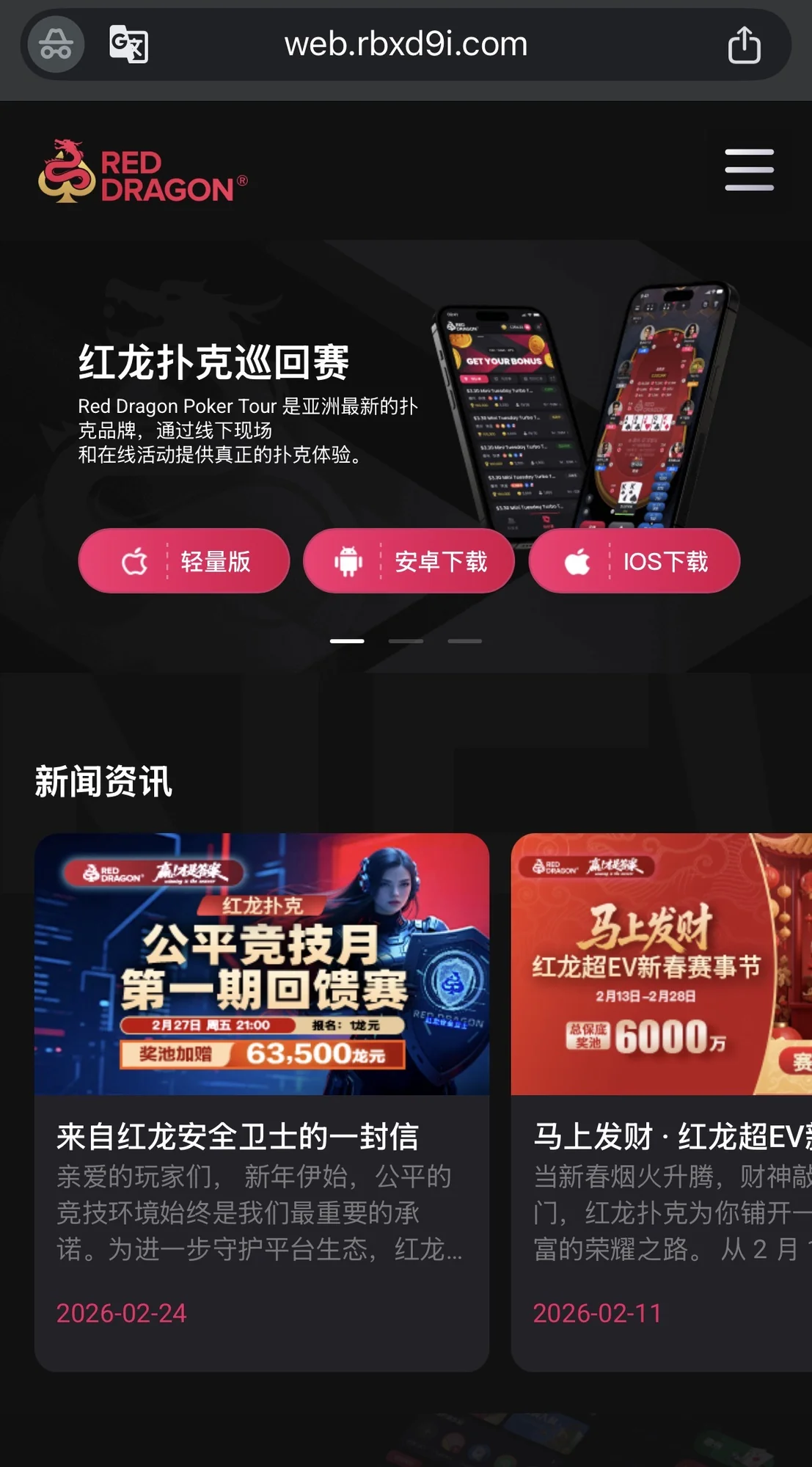
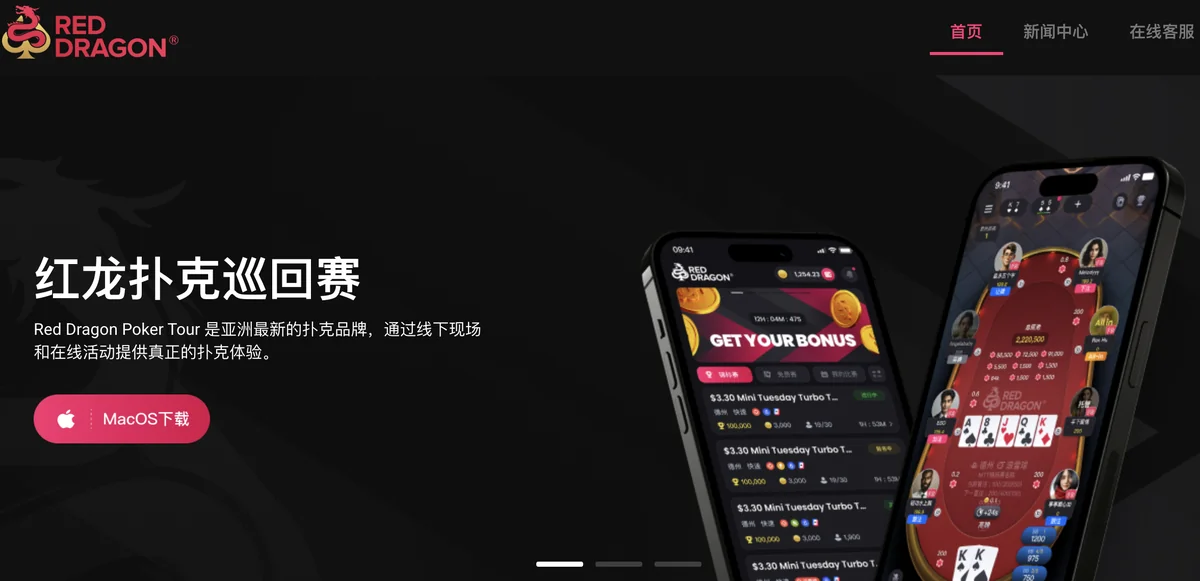
1-0 Go to Official Download Page
Official Desktop Download

After clicking the button, go to the official download page and choose the Windows or macOS version.

1-1 Register Account
Check Desktop System Version

Enter mobile number and set password

2

Run Installation

Windows (.exe)

Run the installer. If Windows Defender shows a warning, click "More info" and then select "Run anyway".

macOS (.dmg)

Open the .dmg file and drag the Red Dragon icon into the Applications folder.

3

Login & Update

First launch may require a few minutes for resource updates. Once updated, log in to start multi-tabling.

4

Restart (Recommended)

To ensure optimal performance and driver compatibility, it is recommended to restart your computer once after installation before launching the game to reduce black screens or lag.

Mobile Installation Guide

Supports both iOS and Android. iOS users must perform the "Trust Certificate" step after installation.

1

Register & Download App

First-time users must register and verify their account before downloading the app.

or
QR Code
Scan with Phone
Quick Register
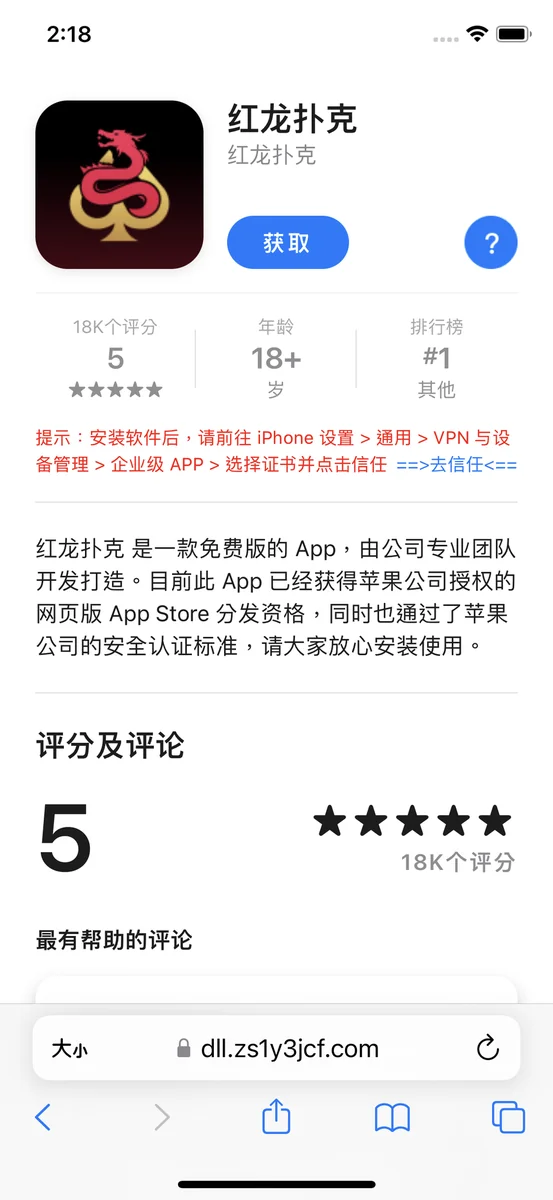
1-0 Official Download Entry
Open Register Page

Go to the official download page and choose your mobile system (iOS or Android)

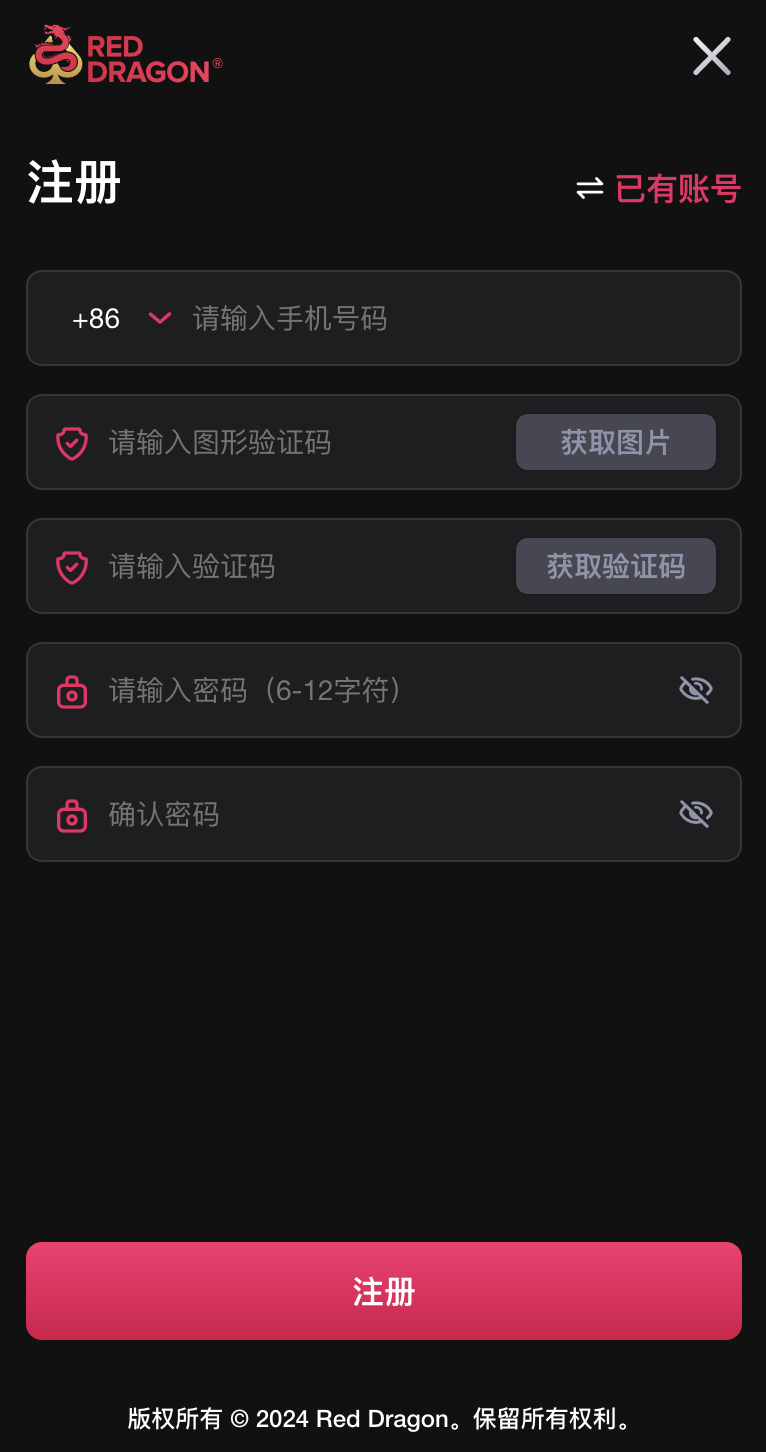
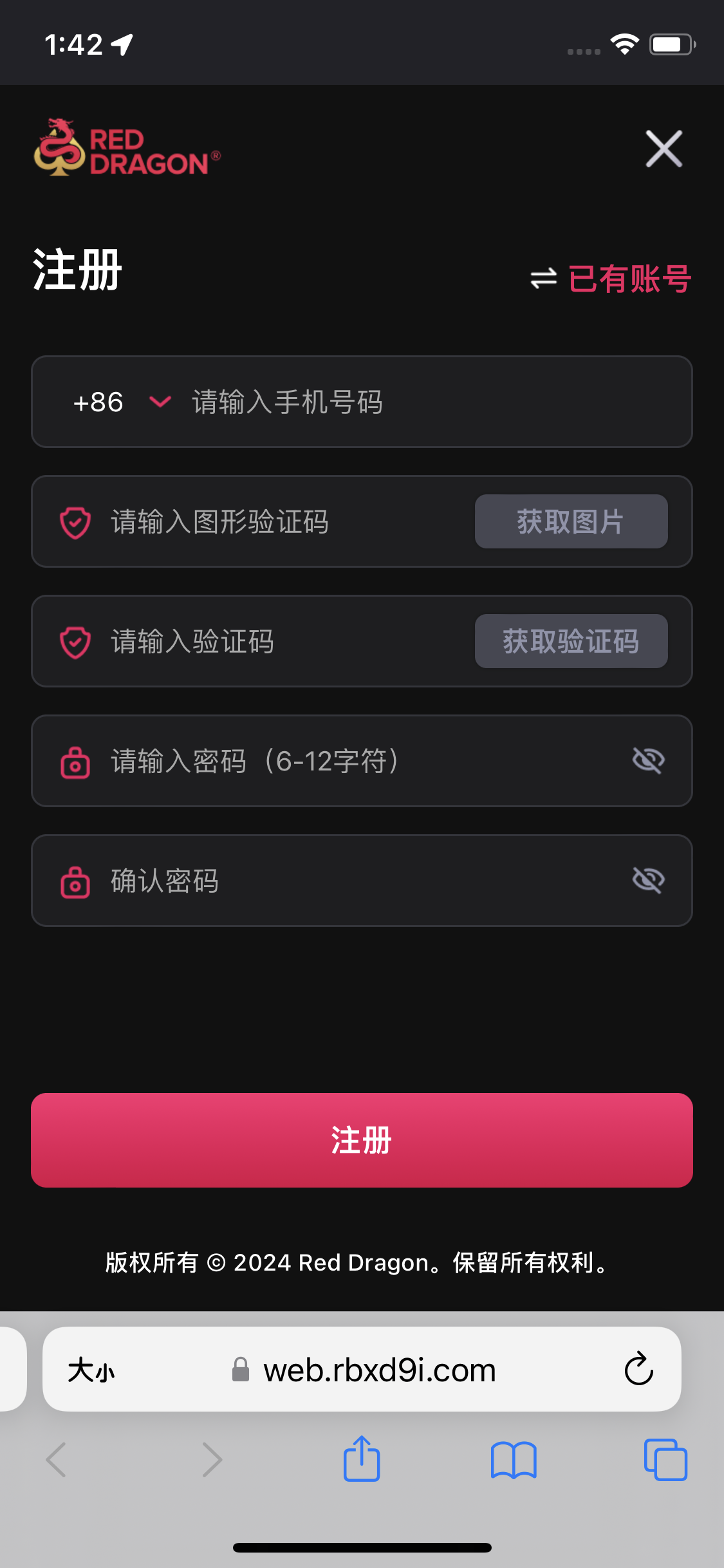
1-1 Register Account
Register Account

Enter mobile number and set password

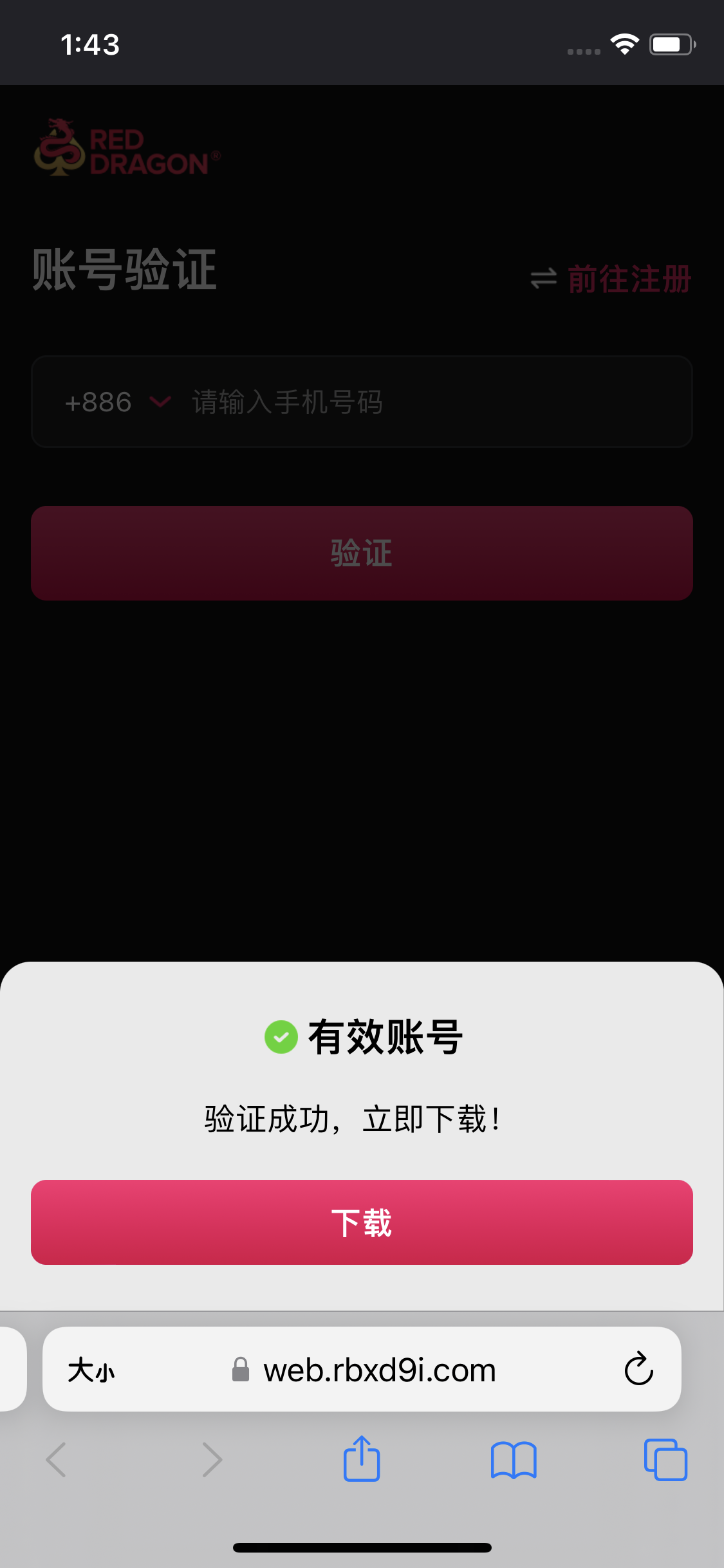
1-2 Verify & Download
Verify and Download

Download after account verification

2

Install App

Android (APK)

Open the official download page and choose Android. When the APK finishes downloading, tap the file to begin installation.

If Android blocks the installation, follow the prompt to let the current browser or file manager install unknown apps. Only install the APK provided on the official download page.

Skip to Step 4 after completion

iOS (Enterprise Certificate)

The app will install to your home screen automatically after download.

Do not open it yet!

Please proceed to Step 3

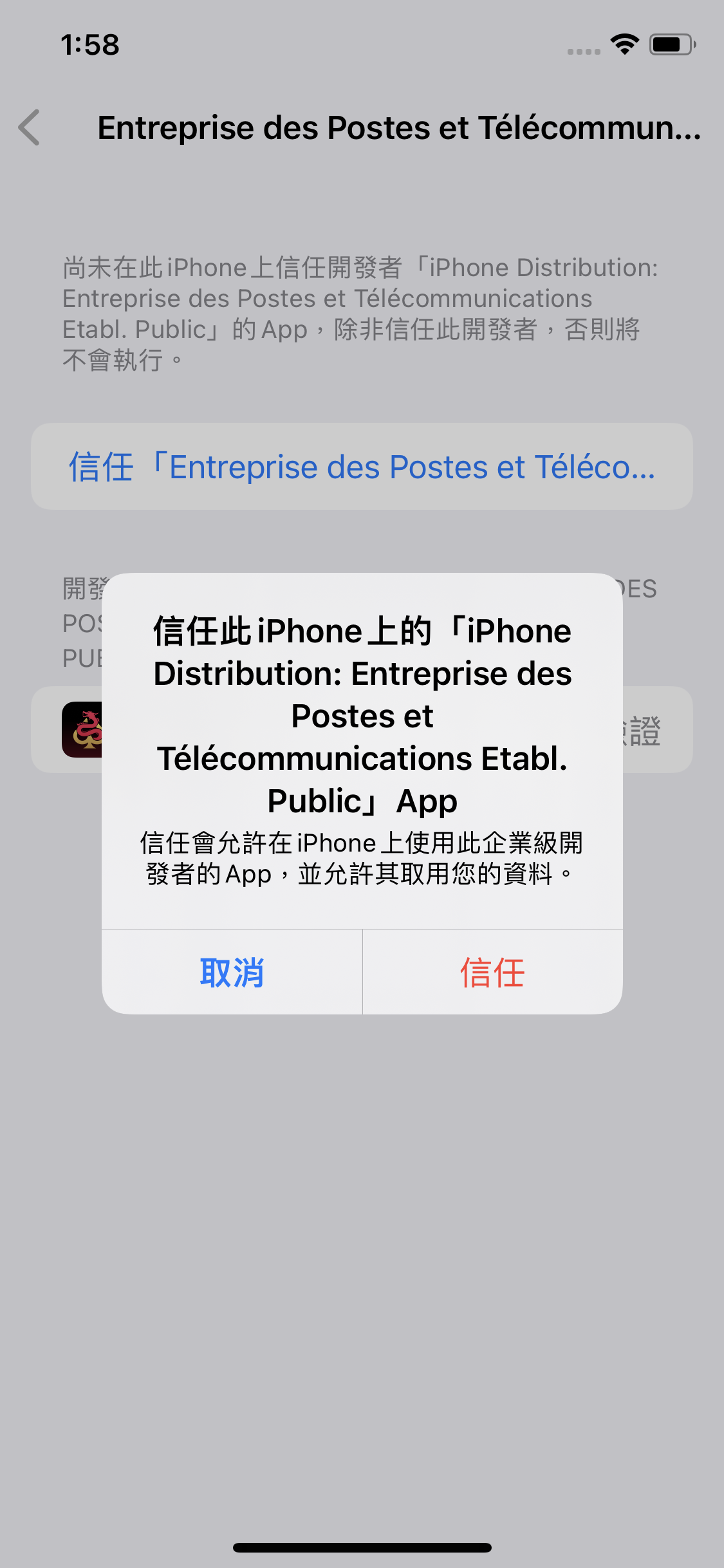
iOS Required: Trust Certificate

If the app shows "Untrusted Enterprise Developer", follow these steps:

3-1 Open Settings
iOS Settings

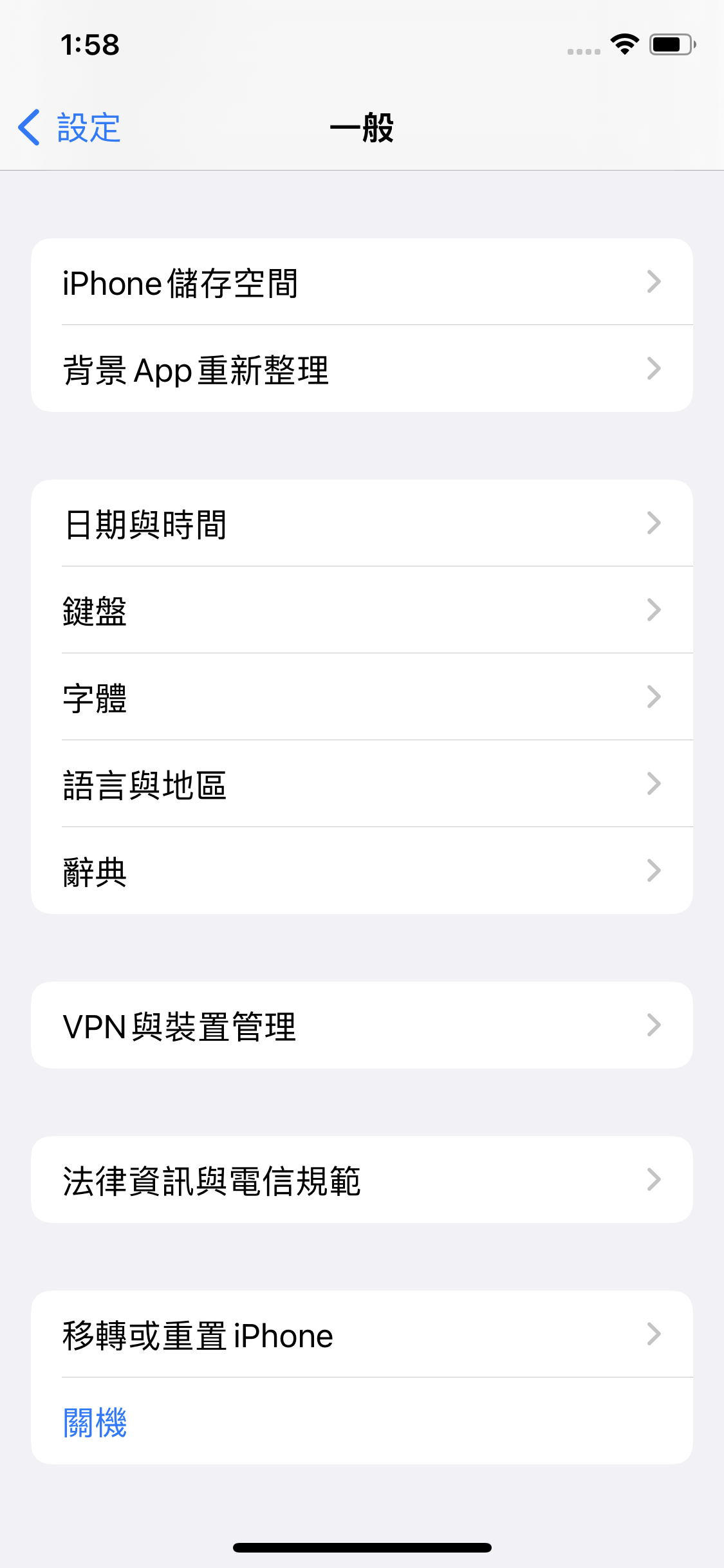
Go to "Settings" > "General"

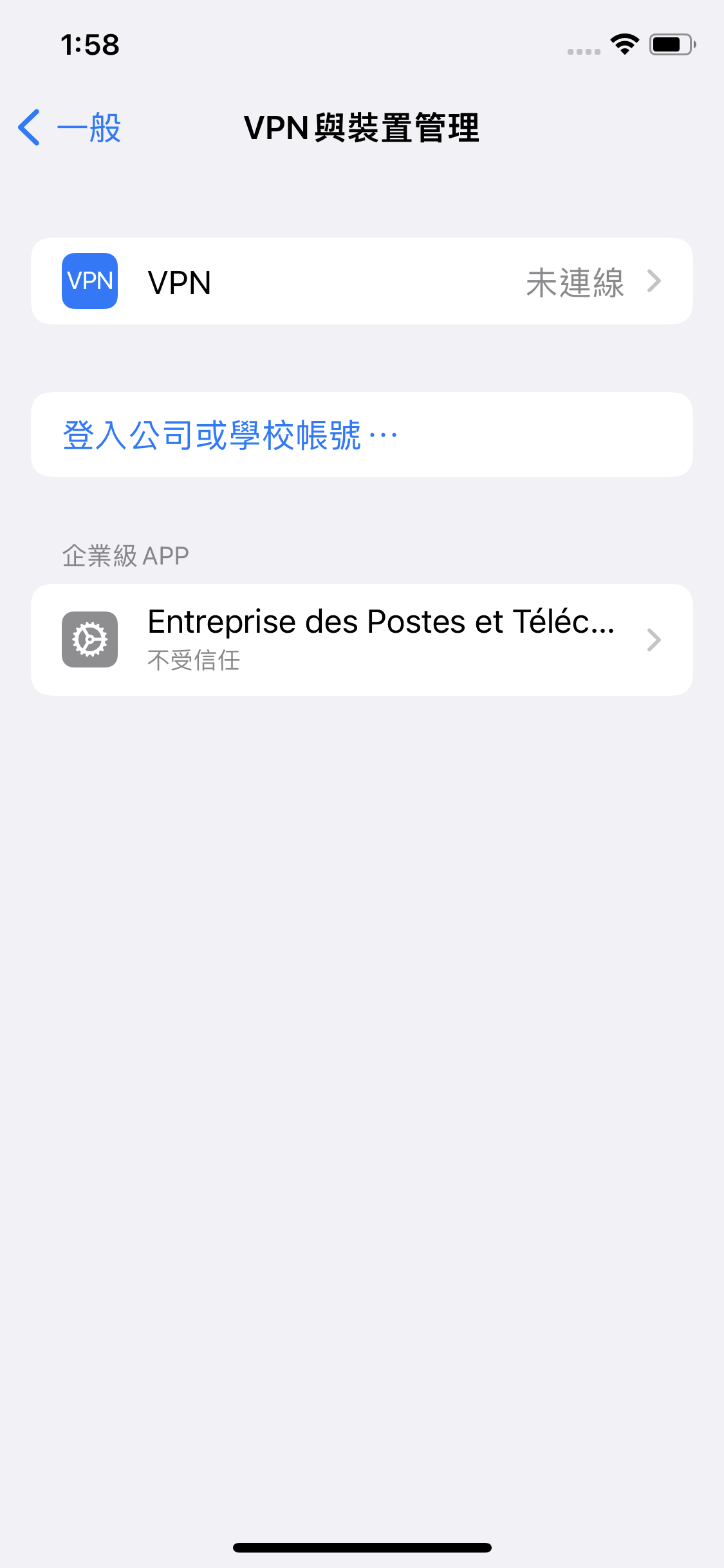
3-2 VPN & Device Management
VPN & Device Management

Scroll down to find "VPN & Device Management"

3-3 Click Trust
Click Trust

Select the certificate under Enterprise App and tap "Trust"

Tip: Click the thumbnails above to view detailed instructions.
4

Launch & Login to Game

After completing the steps above, open the app and login with your registered account.

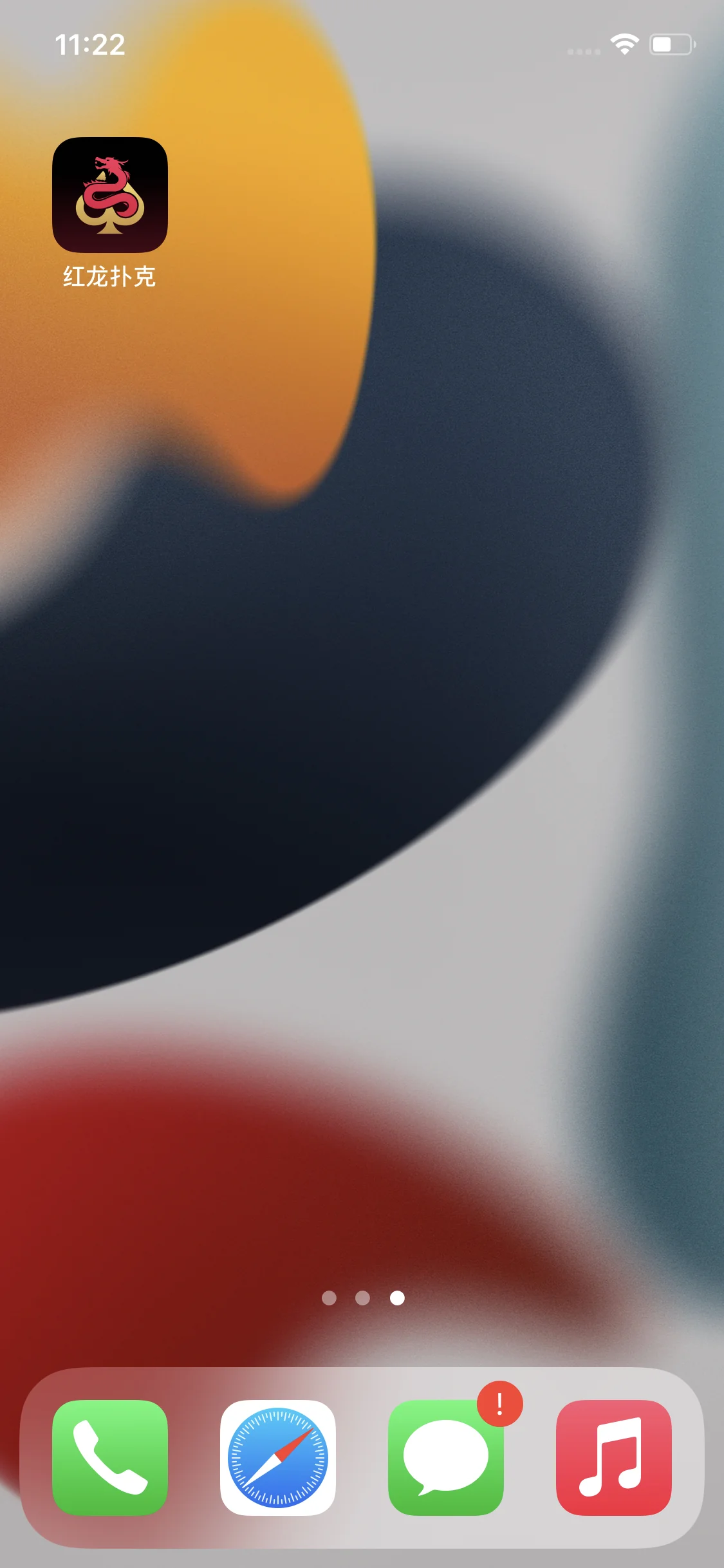
4-1 Launch Game
Open Red Dragon App

Tap the Red Dragon icon on your home screen

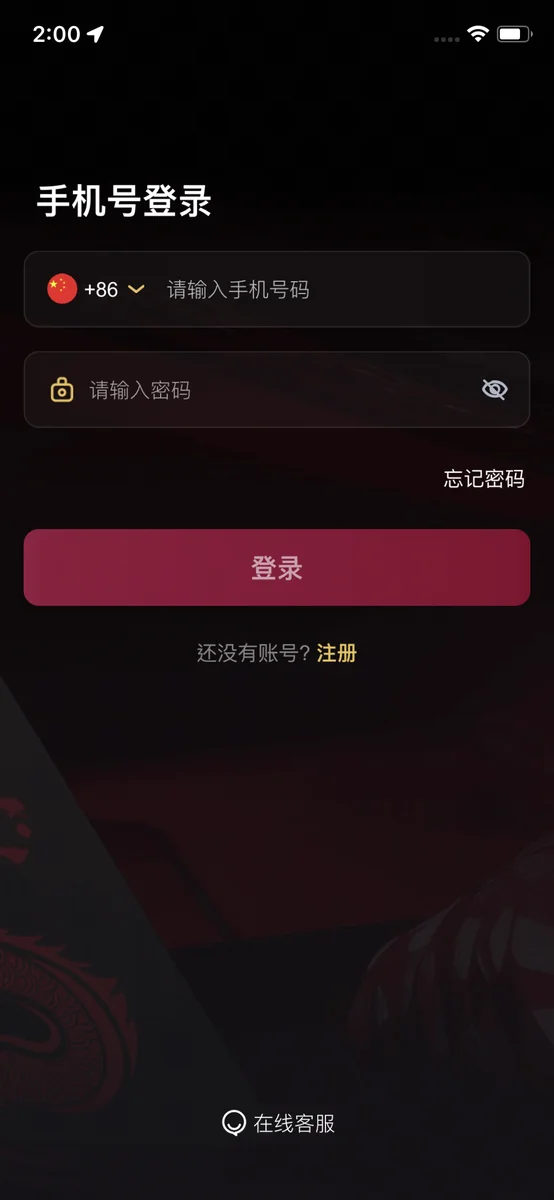
4-2 Login Account
Login Account

Login with the account you just registered

Tip: If the app crashes or doesn't respond, try restarting your phone to refresh system permissions.
Upgrade Notice Version v1.0.35.14

Please reinstall to continue

We have completed App stability updates and content optimization.

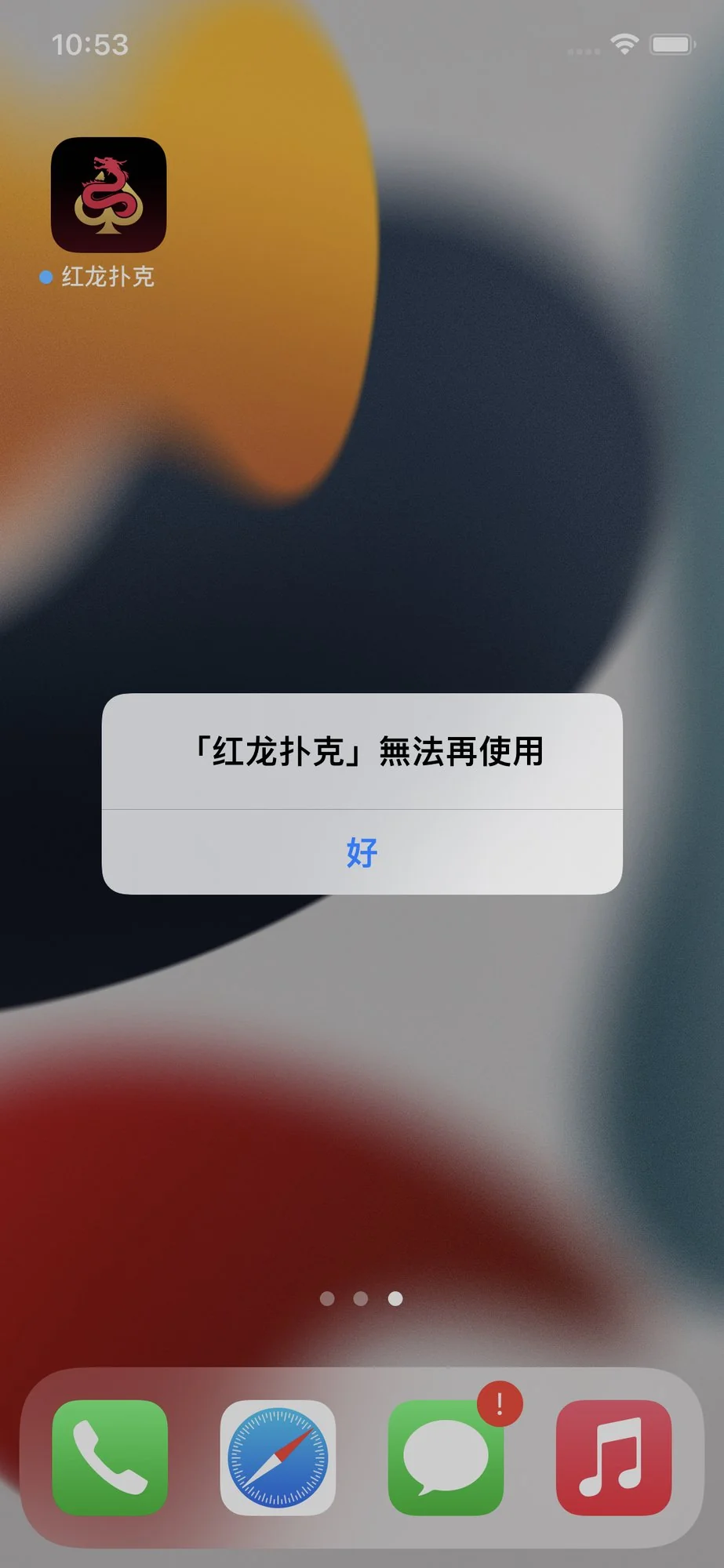
If you see 'No Longer Available', please update:
1

Uninstall First

Long-press the icon and completely delete the old App.

If you see this
2

Verify Then

Go to Settings → General → VPN & Device Management, tap to trust the enterprise developer profile.

3

Install Later

After verification, download the latest version below.
Install here

Installation FAQ

Q: Why does Windows show a blue warning during installation?
This is a Windows Defender SmartScreen prompt. Please click "More info" -> "Run anyway" to proceed. Our software is scanned and safe to use.
Q: iOS app won't open (Certificate Revoked)?
Enterprise certificates update occasionally. If the app stops working, please delete the old app, download the latest version from this page, and repeat the trust steps.

Want to Learn More? Contact Us Now

Download now to start your journey, or contact support to learn more

Official Certified · Secure Funds · 24/7 Pro Support